How to play poker with friends: from setup to your first hand
Nothing to install — it runs in the browser.


Create a room first
📺 With a shared screen
- 1Create a room on your phone and invite friends from the lobby. Take a seat if you want to play.
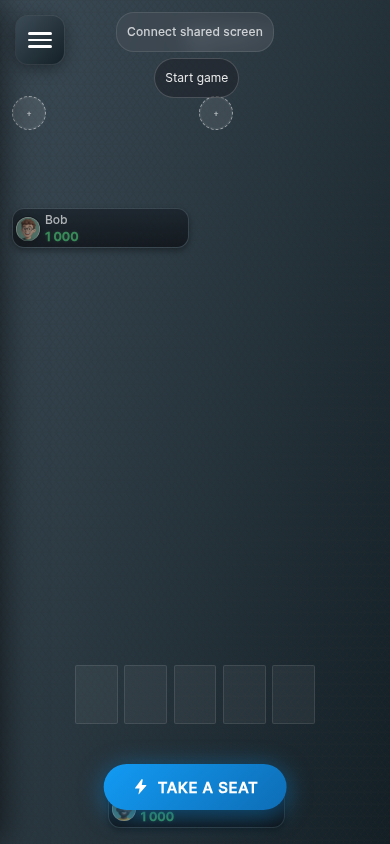
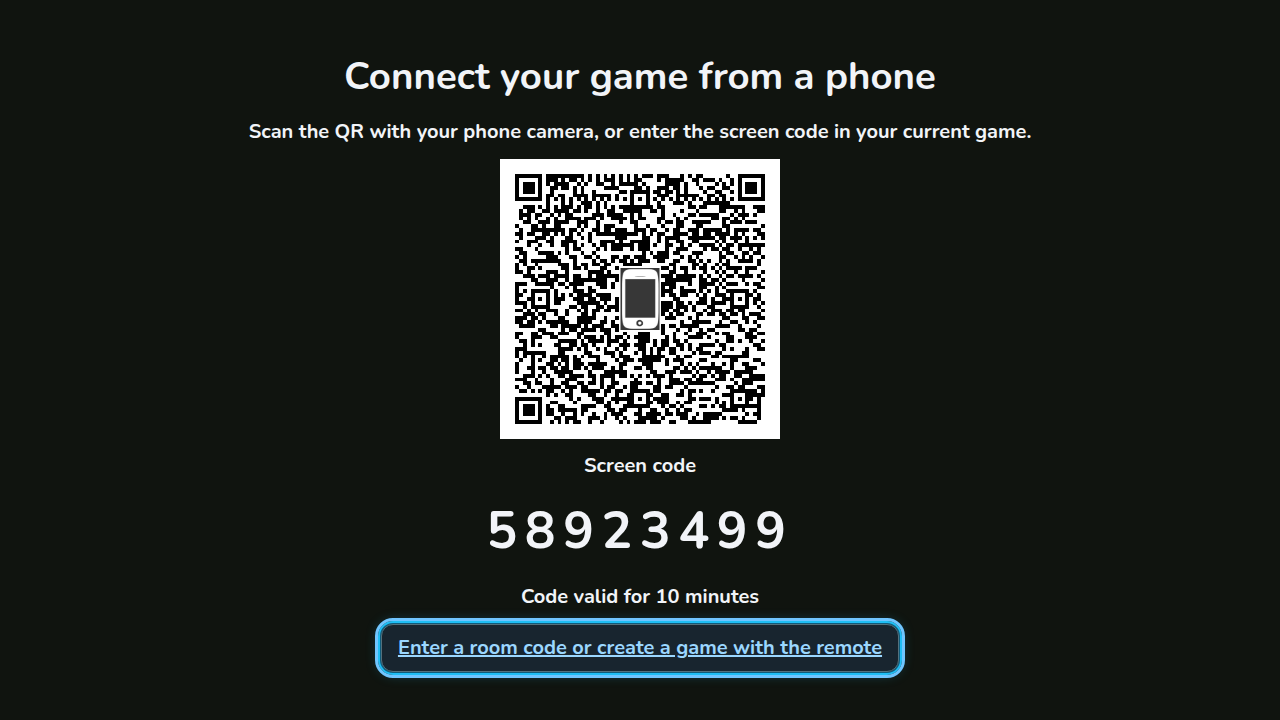
- 2Tap “Connect shared screen”. Open chumix.com/tv on the TV, scan the pairing QR and confirm your room.
- 3When everyone is ready, tap “Start game”. You need at least two players. You can add a screen later too.


If your room already shows a countdown, the first hand will start automatically. Later hands start without another button press.
Connecting a shared screen
- TV browserOpen chumix.com/tv. If you see a pairing QR, scan it with the host’s phone and confirm the room. If you see entry buttons, enter the six-digit room code.
- Laptop or tabletOpen chumix.com/spectate and enter the room code. Keep the table on this screen or connect it to a TV over HDMI. Use “On your TV” to see available display options.
📱 Just phones
- 1Open Chumix on your phone, tap “Create room” and choose the room settings.
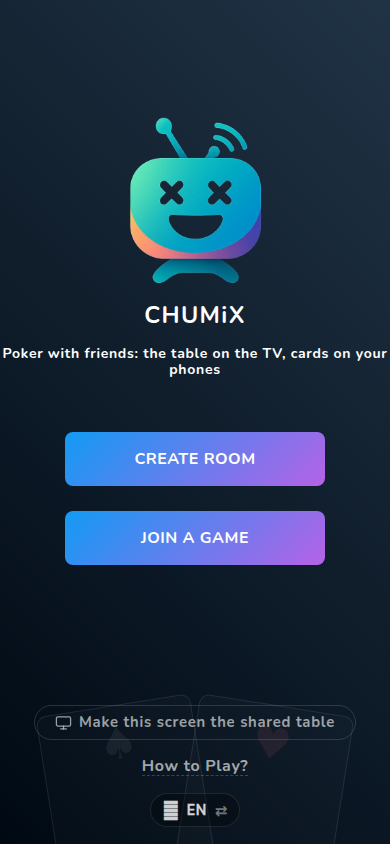
- 2Invite friends using the lobby link or QR. Take a seat if you want to play: the host is not seated automatically.
- 3When everyone is ready, the host taps “Start game”. You need at least two players. Without a shared screen, the table appears on phones automatically.

If your room already shows a countdown, the first hand will start automatically. Later hands start without another button press.
You can add a shared screen later: use “Connect shared screen” in the lobby or “Connect shared screen” in the room menu during play.
This is how players get in

Scan the invite QR from the lobby or the table.

Or tap “Join a game” and type the 6-digit code.

Or open the invite link. Enter your name and tap “Join” — a free seat is chosen automatically.
Your phone is the controller
With a shared screen connected, your phone shows your cards and actions. “Table” opens a brief preview that closes after 10 seconds or when your turn begins. Without a shared screen, the table appears automatically.

Drag your cards up to peek.

Action buttons and the bet slider show up on your turn — about a minute to decide.

You can send reactions to the shared screen.

Plan ahead — set auto check or fold before the turn reaches you.
New to poker?
- Foldgive up the hand
- Checkstay in for free when there’s no bet
- Callmatch the current bet
- Bet / Raiseput chips in — slider or quick buttons
- All-inpush your whole stack
The best five-card hand takes the pot — strongest to weakest:
- Royal FlushA K Q J 10 of one suitAKQJ10
- Straight FlushFive in a row, one suit98765
- Four of a KindFour cards of one rankQQQQ
- Full HouseThree of a kind plus a pairKKK77
- FlushFive cards of one suitAJ863
- StraightFive in a row, any suits98765
- Three of a KindThree cards of one rank888
- Two PairTwo different pairsJJ44
- PairTwo cards of the same rank1010
- High CardNo pair — the highest card playsA
For a shared screen, open chumix.com/tv on your TV